
Warehouse scanner WiFi survey: what to check before blaming the scanner
Warehouse scanner WiFi survey: what to check before blaming the scanner
A technical field guide for scanner drops in warehouses: RF coverage, SNR, roaming, channel reuse, racks, docks, device profiles, and validation steps before replacing handhelds.
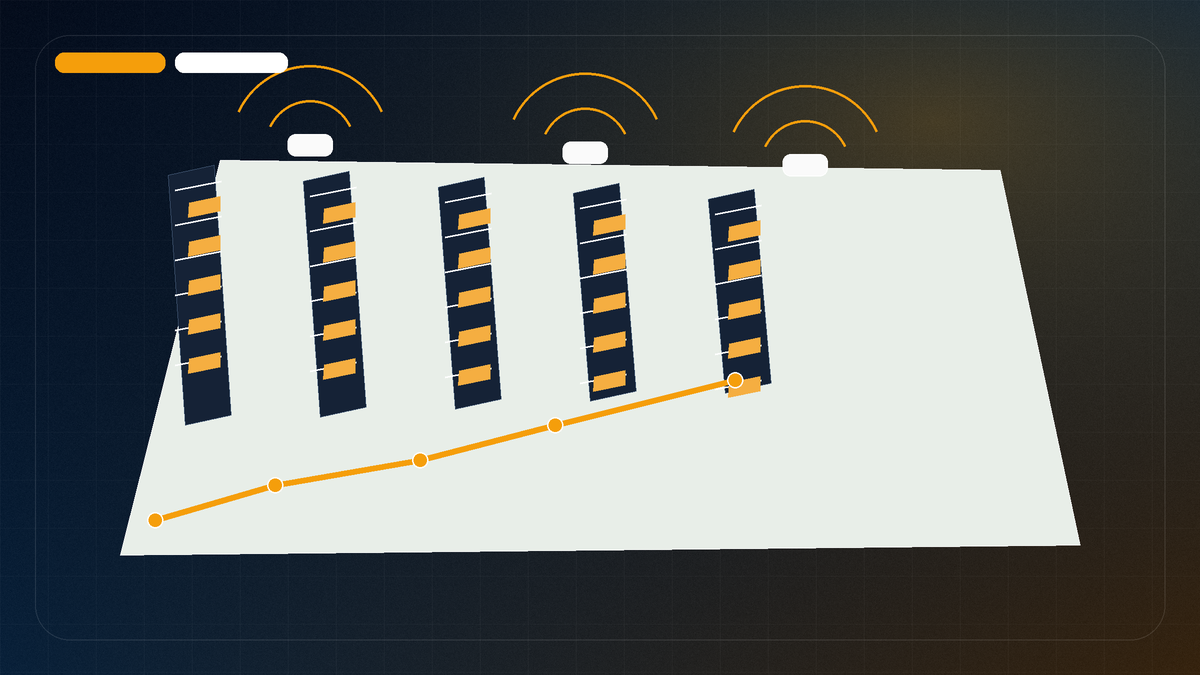
A warehouse scanner problem is not always a scanner problem. The handheld is just the device that exposes the weak point first because it moves constantly, roams aggressively, sleeps between scans, and often uses a latency-sensitive warehouse management application.
That is why a warehouse WiFi survey should start with the workflow, not the access point count. A laptop speed test at the dock door does not prove that scanners will survive a full picking path through rack aisles, freezer doors, mezzanines, and staging lanes.
1. Map the workflow before testing signal
Begin by identifying where scanners actually move: receiving, staging, picking, packing, shipping, returns, cold storage, outdoor aprons, and forklift travel paths. Mark problem zones by task, not just by room name.
- Where do sessions drop?
- Is the problem tied to one aisle, dock, mezzanine, or freezer transition?
- Does it happen while walking, driving, waking the device, or scanning rapidly?
- Are only certain scanner models affected?
- Does the WMS app reconnect quickly or require a full login?
This context changes the survey. A weak-signal corner and a bad-roaming aisle can feel identical to the worker, but they require different fixes.
2. Check the scanner profile
Warehouse devices do not always behave like phones or laptops. Older handhelds may be 2.4 GHz heavy, support fewer spatial streams, dislike wide channels, or roam late. Newer Android scanners may support 5 GHz well but still depend on driver behavior, battery settings, and MDM profile choices.
Document scanner model, radio capabilities, SSID/security type, band steering behavior, minimum data rate policy, roaming assist settings, and whether the device is locked to one band. The WiFi design should match the client fleet that actually drives the business process.
3. Validate RSSI, SNR, and secondary coverage
A scanner survey needs more than a green coverage heatmap. PacketScout checks whether the primary signal is usable and whether a second or third AP is visible enough for roaming handoff without creating excessive co-channel contention.
Typical warehouse questions include: is SNR strong enough in rack aisles, does signal collapse behind inventory, are dock doors noisy, and do high-mounted APs create too much overlap across aisles?
4. Look for channel reuse and aisle bleed
Warehouses often have long sight lines and reflective surfaces. An AP that looks harmless on the floor plan may be heard far down an aisle or across an open dock. Too many visible APs on the same channel can create retries and roaming confusion even when signal strength looks good.
Channel width matters too. Wider channels are rarely the right default in dense warehouse environments. Narrower, cleaner cells often beat wide, noisy channels for scanner reliability.
5. Test roaming as a path, not a point
Scanner failures often appear during motion. A useful survey should include walked or driven paths that mimic actual work. The goal is to see when the device should roam, when it actually roams, and whether the application survives the transition.
For serious issues, pair RF data with controller/AP logs or client event data. Look for authentication delays, DHCP renewals, WPA handshake problems, sticky client behavior, and periods where the scanner clings to a weak AP.
6. Separate RF problems from application timeouts
Sometimes WiFi is not perfect but still good enough, and the real failure is an application timeout or session behavior. Other times the app is fine and RF conditions are clearly bad. A survey report should not guess; it should show the evidence.
PacketScout’s reporting should connect scanner complaints to RF layers, walked paths, AP/channel findings, and recommended changes. That makes it easier to decide whether to adjust WLAN design, retune APs, change device profiles, or escalate to the scanner/application vendor.
Scanner and mobile-computer survey requirements to capture before recommending a fix
Before recommending AP changes, power changes, or scanner replacement, capture the evidence that proves the scanner workflow was actually tested. The goal is a short acceptance record: which mobile computers were used, which warehouse paths were walked, where roaming or RF failed, and what still needs validation after changes.
| Requirement | What to capture during the survey | Why scanners and mobile computers care |
|---|---|---|
| Device and profile inventory | Scanner or mobile-computer model, radio capabilities, supported bands, SSID/profile, authentication method, roaming settings, and whether the device is using the same WLAN profile as the problem report. | This ties acceptance to the handhelds and profile the business actually uses, not to a generic client that may behave differently. |
| Workflow paths, not just open floor space | Walk the actual pick paths, packing benches, docks, staging lanes, cold storage doors, forklift routes, truck-adjacent work areas, and mezzanines where users scan items. | Scanner complaints usually happen at a transition point or work position, not in the cleanest open aisle on the plan. |
| RF evidence on the scanner path | Record RSSI, SNR, noise, channel overlap, and secondary coverage where scanning work occurs. Use the RSSI, SNR, noise, and channel overlap guide for the measurement terms. | The evidence needs to show whether the handheld has usable primary and backup coverage at shelf, dock, and vehicle height. |
| Roaming handoff points | Note where the scanner should change APs, where the BSSID actually changes, whether authentication delays appear, and whether the application session survives the move. | A scanner can pass a standing signal check and still fail while crossing an aisle end, dock door, or rack shadow. |
| Aisle bleed and reuse clues | Compare co-channel reuse, cell overlap across racks, and signal bleed from high-mounted APs or adjacent aisles against the route where scanners stall. | Recording the pattern lets the team compare the same aisle after changes instead of treating a one time heatmap color as the final answer. |
| Symptom context from operators | Capture whether users see disconnects, delayed scans, login prompts, frozen WMS screens, or only slow barcode submission. For troubleshooting causes, keep the deeper diagnosis on why barcode scanners drop WiFi. | The fix differs when the RF is healthy but the application timeout, device profile, or roaming behavior is the real failure mode. |
| Acceptance and post-change validation | Summarize which paths were tested, which scanner/profile combinations passed, which gaps remain, and what must be retested after AP, antenna, channel, power, or profile changes. | The survey should leave the team with a defensible action list, not just a heatmap and a guess about the scanner. |
This does not replace a broader warehouse WLAN design review. It gives the scanner-specific acceptance evidence needed to decide whether the next step is RF tuning, an AP or antenna change, a scanner profile adjustment, or a focused application/session investigation. Keep the record plain enough for operations and IT to use later: note the date, device profile, path, observed failure, measured RF state, suspected non-RF factors, and the exact validation walk that should be repeated after the fix. If those fixes expand into AP replacement, cabling, and phased validation, move the project into a wireless network refresh workflow.
A complete acceptance record should make “tested” specific. For each critical path, it should name the scanner or mobile-computer profile used, the work task performed, the roam or scan result observed, the remaining exception if one exists, and the retest condition that will prove a change helped. Record whether the problem appeared during receiving, picking, replenishment, packing, shipping, forklift travel, or dock staging so the follow-up walk repeats the same business motion. That gives the team a before-and-after comparison instead of a generic statement that warehouse WiFi was checked.
If the evidence points to a facility-wide remediation project, PacketScout can roll the scanner findings into a measured warehouse WiFi survey and design plan without creating a separate duplicate scanner-survey page.
What PacketScout delivers for scanner WiFi problems
- Measured heatmaps for signal, SNR, channel overlap, and AP visibility.
- Notes tied to aisles, docks, staging lanes, and problem workflows.
- Scanner/client profile review when details are available.
- Roaming-oriented observations instead of static speed-test screenshots.
- Prioritized fixes: AP placement, power/channel changes, profile updates, or redesign recommendations.
Warehouse scanner WiFi survey FAQ
Should I replace scanners before surveying WiFi?
Usually no. Verify RF coverage, SNR, roaming, channel reuse, SSID/security settings, and app timeout behavior first. New scanners can still fail on a poorly designed WLAN.
Is a normal laptop survey enough for scanner problems?
It helps, but it is not enough by itself. Scanner workflows involve motion, roaming, sleep/wake behavior, and application sessions. The survey should reflect those paths.
Do warehouses need more APs to fix scanner drops?
Sometimes, but adding APs blindly can make contention and roaming worse. The right fix may be AP relocation, channel planning, power tuning, antennas, or a profile change.