
What a WiFi heatmap shows, and what it misses
What a WiFi heatmap shows, and what it misses
A technical but plain English guide to WiFi heatmaps, coverage, signal strength, SNR, interference, channel overlap, and survey limitations.
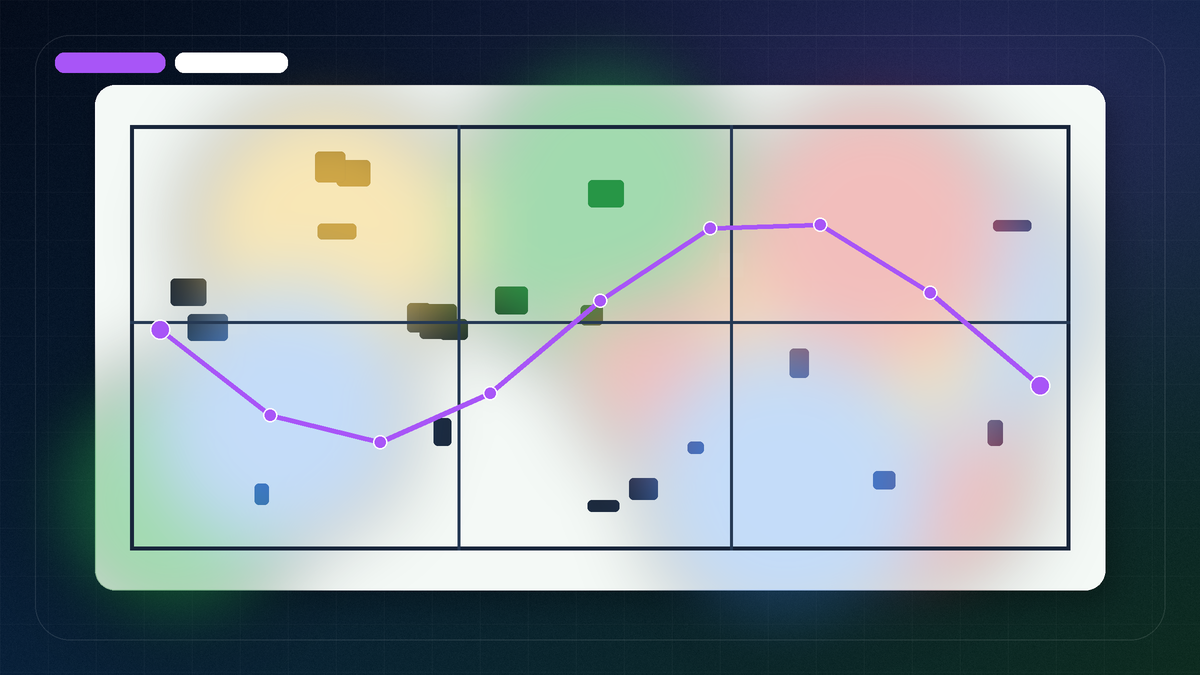
A WiFi heatmap is a visual layer placed over a floor plan to show measured or predicted wireless behavior. Most people think of heatmaps as red/yellow/green coverage pictures, but a professional heatmap can represent several different measurements: signal strength, signal quality, noise, signal to noise ratio, channel overlap, data rate expectations, and sometimes interference patterns.
A heatmap is useful because wireless problems are invisible. The map makes patterns easier to see. But a heatmap is not automatically a diagnosis. It must be interpreted against the building, the users, the devices, and the business requirement.
Predictive heatmap vs measured heatmap
There are two broad heatmap types.
Predictive heatmap
A predictive heatmap estimates coverage before APs are installed. It uses a floor plan, wall/material assumptions, AP models, antenna patterns, and design requirements. Predictive heatmaps are useful for planning, budgeting, cabling, and comparing design options.
The limitation is obvious: a prediction is only as accurate as the assumptions. If the floor plan scale is wrong or wall materials are guessed incorrectly, the heatmap can look precise while still being wrong.
Measured heatmap
A measured heatmap is built from data collected onsite. It shows what the survey device observed while walking the environment. Measured heatmaps are useful for validation and troubleshooting because they expose real RF behavior in the building.
The limitation is more specific than the old warning makes it sound. Survey quality depends on choosing the right Ekahau collection mode and then walking the scope correctly. Auto Pilot, Just Go, Continuous, Stop and Go, and GPS can reduce different location tracking problems, but the survey still has to cover the rooms, aisles, docks, and work areas that matter. That decision is covered in Ekahau Survey modes explained.
What a WiFi heatmap can show
Signal strength
Signal strength is commonly shown in dBm. In dBm, numbers are negative, and closer to zero is stronger. A minus 45 dBm signal is stronger than minus 75 dBm. RSSI can vary by adapter or vendor, while dBm is easier to compare consistently.
Do not treat one signal number as universal. Voice/video, tablets, scanners, and guest browsing can require different targets.
Signal to noise ratio
SNR compares desired signal against background noise. A strong signal in a noisy environment may still perform poorly, so the report has to look at signal, noise, and the coverage layer together.
Channel overlap
Too many APs using the same or adjacent channels can create contention and retries. Adding more APs can make the network worse if channel reuse and power are not planned.
Coverage gaps
A heatmap can show weak areas, dead zones, and spaces where AP placement does not match user needs. In warehouses, gaps may appear in aisles or behind racks. In offices, they often appear in conference rooms, corners, or behind concrete/glass features.
Interference patterns
Some tools and workflows can identify or support analysis of non WiFi interference. Ekahau Sidekick hardware can support spectrum analysis workflows, with Sidekick 2 adding current 6 GHz capability. Spectrum analysis can help detect interference that a normal WiFi only view may miss.
What a heatmap does not prove by itself
A heatmap alone does not prove:
- that every client device will roam correctly
- that a scanner will behave like a laptop
- that a conference room has enough capacity
- that the channel plan is good
- that the AP mounting location is practical
- that the network is ready for future device growth
- that user complaints are solved
The heatmap is evidence. The recommendation comes from engineering interpretation.
Collection mode matters before the heatmap exists
A measured heatmap is only as good as the collection method behind it. In Ekahau Survey, the question is not only predictive or measured. You also have to choose the right collection mode.
Autopilot can reduce manual position marking when the floor plan and iOS tracking conditions are good. Just Go can help when there is no usable map and the hardware supports it. Continuous works for efficient mapped walks. Stop and Go helps with controlled point measurements. GPS belongs outside. Inspect helps verify what was actually measured on the route.
If a heatmap looks suspicious, check the collection mode, the route, and the inspected survey points before accepting the color layer. For a deeper walkthrough, see Ekahau Survey modes explained.
Why heatmaps need a floor plan story
A heatmap should be read with the floor plan, not as a detached image. The interpretation changes when you know the room purpose:
- conference rooms need capacity and video call reliability
- warehouses need aisle and scanner coverage
- lobbies may need guest access but not high density internal service
- hallways may matter for roaming but should not be the only design target
- outdoor transitions may need special validation
Two areas can show similar signal strength but require different fixes because the business use is different.
What a good heatmap report should include
A useful report should include more than screenshots:
- project objective
- scope and floor plans
- survey method summary
- heatmaps for metrics that matter
- notes on weak or noisy areas
- AP placement observations
- channel/interference findings
- capacity or high density risks
- remediation list
- follow up validation recommendation
Common heatmap mistakes
- using a distorted map
- walking only hallways
- ignoring user/device requirements
- hiding weak areas with overly generous color thresholds
- treating predictive maps as field proof
- reporting pictures without recommendations
- adding APs before checking channel overlap
- ignoring noise or interference
Where to go after reviewing a heatmap
If you need measurement and interpretation, start with WiFi heatmap services. If you are still planning AP placement before installation, review wireless network design services. If your team wants to collect data itself, use the Ekahau Sidekick Field Guide before walking the site.
How to read a heatmap report without over trusting colors
A useful heatmap report should separate different questions instead of compressing everything into one visual:
| Map or view | What it can show | What it does not prove by itself |
|---|---|---|
| Signal strength | Whether received signal is strong or weak in walked areas | Capacity, roaming, app performance, or scanner behavior |
| SNR | Whether the wanted signal is separated from the noise floor | Whether the application is configured correctly |
| Noise/interference | Areas where RF conditions may affect performance | The exact source without deeper investigation or spectrum analysis |
| Channel overlap/interference | Where APs use the same or overlapping channels | Whether every client can roam well |
| AP count/visibility | How many APs are heard from a location | Whether more APs would help; too many can create contention |
| Data rate/throughput views | A model or measurement of expected performance | Guaranteed production throughput under load |
If a heatmap looks green but users still complain, move to RF interpretation: signal, SNR, noise, and channel overlap. If the issue is in a warehouse, compare the report against real pick paths, scanner locations, docks, and rack aisles instead of only open walking paths.
Next step if the heatmap looks too simple
If you need a report created or interpreted, start with WiFi heatmap services. If you are collecting your own data, use the Sidekick field guide so the heatmap has clean inputs.
Common heatmap thresholds by use case
Heatmap thresholds should match the application. A guest lobby, warehouse scanner aisle, voice handset path, and conference room do not need the same target.
| Use case | Typical starting signal target | Typical starting SNR target | Why it matters |
|---|---|---|---|
| Basic data | about minus 70 dBm | 20 dB+ | Enough for normal web/email if airtime is healthy |
| Voice or WiFi calling | about minus 67 dBm | 25 dB+ | Roaming and low packet loss matter |
| Video meetings | about minus 65 to minus 67 dBm | 25 dB+ | Higher airtime demand and many clients in rooms |
| Barcode scanners | about minus 67 dBm | 25 dB+ | Reliability and roaming usually matter more than peak speed |
| 6 GHz performance zone | project specific | project specific | Client support and channel width drive the decision |
The heatmap should show what target was used. Without the target, the color scale can make a weak design look acceptable.
FAQ
Is a WiFi heatmap the same as a site survey?
No. A heatmap is usually one output of a site survey. The survey includes planning, data collection, interpretation, and recommendations.
Can a heatmap show interference?
Some heatmap workflows can help identify interference patterns, and spectrum analysis can support deeper investigation. A normal coverage heatmap alone may not explain every interference issue.
Why does my heatmap look green but users still complain?
Coverage may be acceptable while capacity, roaming, noise, client behavior, or channel overlap still cause problems.
Should I use predictive or measured heatmaps?
Use predictive heatmaps before installation and measured heatmaps for validation or troubleshooting. Important projects often need both.
What a heatmap cannot prove by itself
A heatmap is evidence, not a final diagnosis. By itself, it may not prove roaming quality, authentication delay, application session behavior, or whether every client class behaves like the survey device. A clean looking 5 GHz laptop heatmap can still miss a 2.4 GHz only scanner fleet, a sticky client driver, or a high utilization channel during production hours.
Before treating a heatmap as complete, pair it with the question that matters:
- Is the goal coverage, capacity, roaming, scanner reliability, voice quality, or 6 GHz readiness?
- Was the survey walked at the right height and pace for the client devices?
- Were doors, dock areas, inventory, and conference room occupancy representative?
- Did the report include SNR, channel reuse, and exceptions, or only signal colors?
The map is the start of the decision. The interpretation is what makes it useful.
Want PacketScout to review the site?
Send the floor plan, square footage, AP model, critical devices, and the problem you are trying to solve.