
Ekahau Survey modes explained: Just Go, Auto Pilot, Continuous, Stop and Go, GPS, and Inspect
Ekahau Survey modes explained: Just Go, Auto Pilot, Continuous, Stop and Go, GPS, and Inspect
Ekahau Survey modes explained: compare Auto Pilot, Just Go, Continuous, Stop and Go, GPS, and Inspect for onsite surveys, rentals, and heatmap QA.
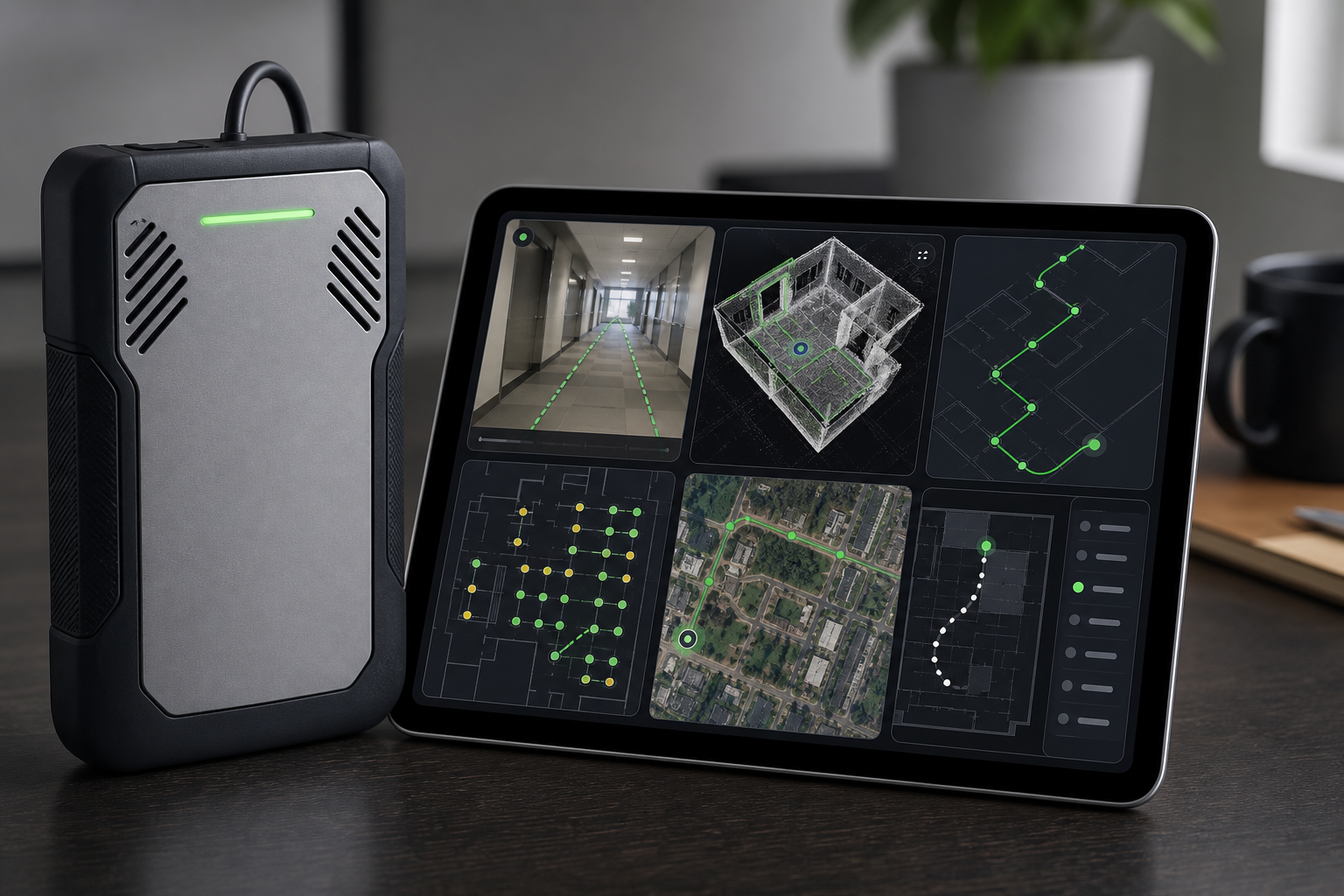
Ekahau Survey has more than one way to collect field data. That matters because the collection mode controls how the software ties RF measurements to a physical location on the map. A measured heatmap is only useful if the measurements are placed where they actually happened.
A measured heatmap is only as good as the way the data was collected. Modern Ekahau workflows give PacketScout several ways to reduce location errors: Auto Pilot can reduce manual map tapping, Just Go can help when no usable floor plan exists, Continuous is efficient for clean walk paths, Stop and Go is controlled for exact spots, GPS fits outdoor work, and Inspect helps connect heatmap colors back to measured route points.
The mode does not make the survey automatic. It changes the risk. A good onsite survey still needs clean data collection, a clear scope, the right map, the right device, the right walk path, and someone who knows when the data looks wrong.
If you are planning your own walk, this guide will help you choose a collection mode before survey day. If the site is a warehouse, hospital, school, plant, hotel, or deadline driven office build, this is also where hiring PacketScout for an onsite Ekahau WiFi survey service starts to make sense. If your team can collect clean data, Ekahau Sidekick rental is still a strong path.
Quick answer: which Ekahau Survey mode should I use?
| Situation | Best starting workflow | Why it fits | Main risk |
|---|---|---|---|
| You have a good floor plan and an iPad or iPhone running Ekahau Survey | Auto Pilot | It uses iOS device camera and motion tracking for position, while Sidekick records RF measurements | Needs correct start point, good lighting, steady walking, and location correction if drift appears |
| You do not have a floor plan and you have a LiDAR capable iOS device | Just Go | It can create a working sketch while collecting WiFi data | The sketch still needs review before anyone treats it like a plan suitable for design decisions |
| You have a floor plan and want a fast standard validation walk | Continuous | It records as you walk and uses clicks or taps at starts, turns, stops, and key positions | Bad taps, missed turns, or walking too fast can place data poorly |
| You need controlled samples in a small or tricky area | Stop and Go | You stop at each point and let the tool collect samples before moving | It is slower and sparse points can miss RF changes between samples |
| You are surveying outdoor coverage with sky view | GPS | It uses GPS location for outdoor or open area collection | It needs the right device, GPS lock, and a map workflow that makes sense outdoors |
| You already walked the survey and need evidence at individual route points | Inspect | It lets you review measured data along the survey route | It is analysis and QA, not a collection mode |
The best answer can change inside the same project. A campus job might use GPS outside, Auto Pilot inside, Stop and Go in a lab, and Inspect during QA. A warehouse survey might use Continuous for long aisles, Stop and Go at dock doors or scanner trouble spots, and Inspect when the heatmap looks cleaner than the complaints sound.
Collection mode is not the same as active or passive survey
People mix these terms up.
Active and passive describe what kind of WiFi data you collect. A passive survey listens to beacons and RF conditions. An active survey tests a client connection and can show client experience details such as latency or throughput, depending on the setup.
Predictive and measured describe when the evidence is created. Predictive design happens from a model before or around installation. Measured survey work happens onsite.
Ekahau Survey modes describe how the field walk is located and collected. That is a separate decision. You can have a measured survey that uses Auto Pilot, Just Go, Continuous, Stop and Go, or GPS. You can then use Inspect to examine route point detail.
This distinction matters before a site visit is scheduled. A customer asking for a WiFi heatmap may really need a measured validation survey. A customer asking for active vs passive WiFi surveys may still need help choosing the collection mode. A customer asking for Ekahau Survey modes is probably close to taking action and may be deciding whether to rent equipment or hire someone to walk the site.
Why collection mode choice affects heatmap quality
A measured heatmap is a visualization of collected data over a floor plan. The colors can look smooth, but the software is still working from measurements taken along a survey route or at sample points. If you select a point on the actual survey route in an inspection view, you are closer to the measured evidence. If you click a random spot between routes, you are looking at a visualization based on interpolation and modeling from nearby data.
That is why collection mode matters.
A good mode helps place the measurements correctly. It does not decide the scope for you. It does not know that the forklift path matters more than the empty corner. It does not know that a cold storage door opens every few minutes. It does not know that the scanner user holds the device at waist height while the laptop user sits near a window.
Mode choice fixes part of the heatmap reliability problem. Field judgment fixes the rest.
Auto Pilot Survey
Auto Pilot is often the first mode to consider when the site has a usable floor plan and the survey will be walked with the Ekahau Survey app on iPad or iPhone. Ekahau describes Auto Pilot as an iOS app survey mode that uses the iOS device sensors and camera tracking for positioning, while the connected Sidekick records RF measurements.
The simple version: you tell the app where you are on the floor plan, hold the device in the right orientation, walk the path, and let the app track movement. If the blue location dot starts drifting from where you really are, you tap the correct location again.
How Auto Pilot works in practice
A clean Auto Pilot survey usually looks like this:
- Open the correct project and floor plan.
- Confirm the Sidekick or Sidekick 2 is connected and visible to the app.
- Confirm the floor plan scale before the walk starts.
- Choose Auto Pilot in the Survey tab.
- Tap the real starting location on the map.
- Hold the iPad or iPhone so the camera can see the environment ahead.
- Walk at a steady pace through the required areas.
- Tap the map again if the dot drifts.
- Stop and save the survey when the route is complete.
- Review the data before leaving the site.
The appeal is obvious. The surveyor spends less time manually tapping every turn and stop. That can reduce one of the common field errors: bad position marking. In a building with clear visual features, decent lighting, and a good map, it can make collection smoother.
Where Auto Pilot fits
Auto Pilot fits offices, schools, health care spaces, retail areas, hotels, and many warehouse office zones where the floor plan is known and the environment has enough visual detail for tracking.
It also fits rental customers who have a capable staff member onsite. If your team can walk carefully and verify the project before leaving, renting a Sidekick kit can be a good choice. PacketScout can still help with planning or report review if you want a hybrid path.
Auto Pilot limitations
Auto Pilot is not magic. The floor plan still needs to be correct. The starting point matters. The camera needs enough environmental detail. Lighting matters. Long blank hallways, repetitive warehouse aisles, glass walls, dark rooms, and blocked camera views can increase drift risk.
A surveyor still has to cover the right rooms and paths. Auto Pilot will not remind you that the receiving dock, staging cage, or executive conference room was missed unless the scope and review process catch it.
Auto Pilot pros
- Reduces manual map tapping compared with classic walk modes
- Helps keep the surveyor focused on the path and surroundings
- Good fit when the floor plan is solid and the iOS device supports the workflow
- Helpful for large indoor walks where continuous manual clicks get sloppy
Auto Pilot cons
- iOS app workflow, not something to assume on every platform
- Needs a good map and correct scale
- Can drift and needs position correction
- Lighting and visual features affect tracking
- Still requires good field discipline and review after the walk
Just Go Survey
Just Go is the mode to look at when floor plan preparation is the bottleneck. Ekahau positions Just Go as a way to start without a floor plan, using supported LiDAR capable iOS hardware to sketch the environment while WiFi data is collected. Because Ekahau has labeled this workflow as beta in public support material, PacketScout treats it as a useful discovery option rather than a promise for every project. For any paid visit or rental plan, the current app, device, and support status should be confirmed before the workflow is built around Just Go.
This is the mode people ask about when they say, can I just walk the site and let the tool build the map? The answer is yes in the right conditions, but the result still needs review.
How Just Go works in practice
A Just Go workflow usually starts with the fact that the map is missing, outdated, or not worth cleaning before a quick investigation. The surveyor launches the project, chooses the Just Go style workflow, and walks while the device scans the space. The device can create a working sketch of the space while data is collected, but walls, openings, and obstacles still need review before the sketch drives design decisions.
That changes the field conversation. Instead of spending the morning hunting for a PDF that nobody trusts, the survey can start. For a health check, troubleshooting walk, small site, or early discovery visit, that is useful.
Where Just Go fits
Just Go is useful when:
- the floor plan does not exist
- the plan exists but does not match the building
- the site is small enough that a generated sketch can be reviewed quickly
- the goal is a health check or discovery survey
- the project needs enough evidence to decide the next step
It can also help rental customers who receive a Sidekick kit and realize the map is the weak part of the plan. If the device supports Just Go, the team may still complete a useful collection. If the project needs a plan suitable for design decisions and formal recommendations, that is where PacketScout onsite or hybrid review becomes safer.
Just Go limitations
Just Go depends on supported iOS hardware and LiDAR. It is not something to assume on Android or older devices. It also produces a working floor plan sketch, not a verified architectural drawing.
That distinction matters. A sketch may be fine for a quick office validation. It may be too rough for a warehouse design decision, an AP cabling plan, or a formal remediation report unless someone validates geometry, scale, and areas of interest.
Just Go pros
- Fast start when no floor plan is ready
- Can save a site visit that would otherwise stall
- Good for discovery, health checks, and small site validation
- Reduces dependence on bad customer drawings
Just Go cons
- Requires supported LiDAR capable iOS hardware
- The sketch needs review before design decisions
- Complex geometry, reflective surfaces, clutter, and poor visibility can hurt map quality
- Less appropriate when cabling, mounting, or AP count decisions need a verified plan
Continuous Survey
Continuous is the classic efficient walk mode. The surveyor uses a floor plan, starts collection at a known point, walks the path, and marks turns, stops, and changes in direction. The tool records data as the route progresses and places that data along the line between marked points.
This is still one of the most practical modes when the surveyor knows what they are doing.
How Continuous works in practice
In a clean Continuous walk, the surveyor taps or clicks at the starting point, walks a straight section, taps at the turn, walks the next section, and repeats. If the surveyor stops for more than a moment, they mark that stop and mark again before leaving. The point is to keep the line on the map close to the path on the floor.
This is where old survey advice still matters. Walk at a steady pace. Do not cut across spaces that users never use. Do not survey only the easy hallway if the actual problem is in offices, aisles, patient rooms, classrooms, or dock doors.
Where Continuous fits
Continuous fits standard validation work, office walks, school floors, hotels, many warehouse aisles, and large areas where a stop at every point would take too long.
For a rental customer with a trained IT person, Continuous is often practical. The person walking the survey needs to understand map scale, route marking, and when to pause. If that sounds like a stretch, rent the kit but get help planning the walk before the shipping window starts.
Continuous limitations
Continuous depends on accurate route marking. If the surveyor misses a turn, taps the wrong side of a wall, walks too fast, or forgets to mark a long stop, the path can look clean while the data is not placed quite right.
Continuous is also easy to over trust. It creates a lot of data, which feels reassuring. But lots of data along the wrong path is still bad data.
Continuous pros
- Efficient for most indoor validation walks
- Good balance between speed and coverage
- Works well with a prepared floor plan
- Practical for rental customers who can follow a disciplined route
Continuous cons
- User marked positions still matter
- Missed turns and stops can distort results
- Fast walking can reduce quality
- It may miss small problem areas if the path stays too broad
Stop and Go Survey
Stop and Go is the slower, more deliberate mode. The surveyor stops at a point, marks the location, waits while samples are collected, then moves to the next point.
It is not the default mode for every hallway. It fits when exact locations matter, when the environment is awkward, or when the person collecting data needs to stay alert instead of walking while looking at the map.
How Stop and Go works in practice
The surveyor chooses a set of sample points that represent the area. At each point, they stop, tap the location on the floor plan, hold position, and let the tool collect samples. Then they walk to the next point and repeat.
Because collection happens at points, spacing matters. If the points are too far apart, the heatmap may miss a small RF shadow, a rack effect, or a coverage dip near a door. If the points are too close together, the survey becomes slow without always adding useful evidence.
Where Stop and Go fits
Stop and Go fits:
- labs and medical areas where careful movement matters
- small rooms with known complaints
- dock doors and warehouse thresholds
- stairwells and awkward transitions
- AP on a stick tests
- areas where the surveyor must avoid moving equipment or people
- spots where one exact measurement matters more than speed
For onsite work, Stop and Go works best as a targeted tool. Continuous or Auto Pilot can handle the main walk, then Stop and Go can tighten up locations where the normal route needs more certainty.
Stop and Go limitations
Stop and Go can be too sparse if the surveyor is impatient. It can also be slow enough that the building changes during the survey: people move, doors open, forklifts pass, and clients roam. The measured point is useful, but it is still a moment in a live environment.
Stop and Go pros
- Controlled collection at exact points
- Good for difficult rooms or high risk zones
- Helps when the surveyor needs safety awareness
- Useful for AP on a stick and validation spot checks
Stop and Go cons
- Slower than Continuous or Auto Pilot
- Sparse points can hide problems between samples
- Requires good judgment about point spacing
- Not ideal for large areas by itself
GPS Survey
GPS Survey is for outdoor work. It belongs in parking lots, yards, campuses, outdoor storage areas, marinas, outdoor hospitality spaces, and other places where satellite location can work.
Do not use GPS as an indoor shortcut. Indoor GPS is unreliable or unavailable in many buildings. The better indoor choices are Auto Pilot, Just Go, Continuous, or Stop and Go, depending on the site and device.
How GPS works in practice
In an outdoor Survey app workflow, the device uses GPS location while the surveyor walks or drives the area. In some workflows, a map or anchor points help align the GPS path to the plan being used.
The important requirement is sky view. If the survey happens between metal buildings, under canopies, inside warehouses, or near structures that block or reflect signals, GPS accuracy can suffer.
Where GPS fits
GPS fits:
- outdoor yards
- parking lots
- campus paths
- outdoor seating areas
- outdoor warehouse staging
- large open spaces with few indoor landmarks
GPS limitations
GPS mode depends on the device and workflow. Public Ekahau guidance notes iPhone or cellular iPad style hardware for iOS GPS workflows because iPads without cellular hardware do not have the same dedicated GPS hardware. Ekahau AI Pro also has different support boundaries than the mobile Survey app, so the platform matters.
Do not choose GPS until the project scope and device are known. The safer scope language is outdoor survey, GPS capable device, clear sky, and map alignment.
GPS pros
- Best fit for many outdoor surveys
- Reduces manual location marking outside
- Useful for large open areas
- Good when indoor style floor plans do not fit the work
GPS cons
- Poor fit indoors
- Needs compatible hardware and GPS lock
- Can drift near buildings, metal, canopy cover, or limited sky view
- Still needs project scope and route planning
Inspect, Survey Inspector, and why this belongs in the mode discussion
Inspect is not a collection mode. It is a review and QA workflow. It belongs in this guide because it is how you check whether the collection mode gave you trustworthy evidence.
A heatmap gives spatial trends. Inspect lets you look at route points and measured details. That difference matters when the heatmap says the area is fine but users keep complaining.
How Inspect helps after the walk
After a survey, use Inspect to ask questions like:
- what did the Sidekick measure at this point on the route?
- which APs were heard here?
- what channel and band were involved?
- did SNR drop at the complaint location?
- was the problem visible only during part of the walk?
- does the route pass through the actual user path?
- did the survey miss the room, aisle, dock, or stairwell that matters?
Inspect is also the sanity check when a heatmap looks too smooth. Smooth heatmap colors can hide the difference between directly measured route data and interpolated areas between routes.
Inspect limitations
Inspect cannot collect missing data after the fact. If the survey skipped a room, Inspect can show that the route did not cover it, but it cannot invent a measured sample inside the room. If a scanner problem only happens during shift change, Inspect can show the data that was captured, but it cannot prove what happened during a different traffic period.
Inspect pros
- Strong QA tool for measured survey evidence
- Helps connect heatmap colors to route points
- Good for troubleshooting and report review
- Helps decide whether the site needs a second walk
Inspect cons
- Analysis only, not collection
- Cannot fix a missing route or wrong scope
- Requires someone who knows what RF details matter
Mode by mode comparison for onsite survey planning
Use the notes below as a project planning summary rather than a replacement for the full sections above.
Auto Pilot planning summary
- Needs a floor plan.
- Needs a supported iOS Survey app workflow.
- Best use: indoor mapped walks where less manual tapping helps.
- Main limitation: drift, lighting, camera view, and floor plan quality.
- Rental fit: good when staff can walk carefully and correct drift when needed.
- Onsite service fit: good for larger sites, complex scope, or tight deadlines.
Just Go planning summary
- Does not need a starting floor plan.
- Needs supported LiDAR capable iOS hardware.
- Best use: no map, fast discovery, and small site health checks.
- Main limitation: the sketch needs geometry review.
- Rental fit: good when the device supports it and the goal is discovery.
- Onsite service fit: good when findings affect design or remediation.
Continuous planning summary
- Needs a floor plan.
- Platform support depends on the Ekahau app or software being used.
- Best use: efficient standard survey walks.
- Main limitation: user marked path errors.
- Rental fit: good with trained staff.
- Onsite service fit: good for validation and troubleshooting.
Stop and Go planning summary
- Needs a floor plan.
- Platform support depends on the Ekahau app or software being used.
- Best use: controlled points, difficult areas, and AP tests.
- Main limitation: slow collection and sparse spacing if points are too far apart.
- Rental fit: good for focused testing.
- Onsite service fit: good for high risk or complaint areas.
GPS planning summary
- Needs an outdoor map workflow.
- Needs compatible GPS capable hardware.
- Best use: outdoor coverage.
- Main limitation: GPS lock and sky view.
- Rental fit: sometimes, if the scope and device are clear.
- Onsite service fit: good for campuses, yards, parking lots, and outdoor operations.
Inspect planning summary
- Uses collected survey data.
- Platform support depends on the Ekahau app or software being used.
- Best use: QA and interpretation after the walk.
- Main limitation: it cannot collect missing data.
- Rental fit: useful for review.
- Onsite service fit: very useful for report interpretation.
Which mode fits by project type
Office survey
For a normal office with a good floor plan, Auto Pilot or Continuous are usually the starting points. Auto Pilot reduces manual location marking if the device and environment support it. Continuous is still strong when route marking is disciplined. Stop and Go belongs in conference rooms, executive areas, video call complaint rooms, or other exact trouble spots.
Rental can work well here if the customer has a good map and someone careful onsite. Onsite service makes sense when there are many floors, poor maps, a short move in deadline, or a report that must support AP relocation decisions.
Warehouse survey
For a warehouse, the prettiest whole-building heatmap is not the goal. The survey has to follow the paths where work happens: long rack aisles, receiving, shipping, pack stations, freezer doors, mezzanines, forklift lanes, and scanner trouble zones.
Continuous can work for the main aisle walks. Stop and Go can help at dock doors, rack ends, staging zones, or scanner complaint spots. Auto Pilot may help in areas with enough visual features, but repetitive aisles and lighting conditions deserve caution. Just Go can help when the map is missing, but geometry should be validated before the sketch is used for AP placement.
This is where PacketScout onsite service is often the better path. The collection mode is only one piece. The harder part is knowing which scanner path, height, shift, and rack condition should be measured.
School, clinic, or public building
Auto Pilot or Continuous usually fits the main walk. Stop and Go can help in rooms that are hard to access or where the surveyor needs to pause for safety and privacy. The schedule matters. A quiet building can hide capacity and roaming problems that appear when the building is full.
Outdoor yard or campus
GPS is the starting point when the survey is truly outdoors with clear sky. If the work moves under canopies, into buildings, or around metal structures, be ready to switch modes. A mixed indoor and outdoor site should be scoped as mixed mode work from the start.
No floor plan available
Just Go is the first mode to consider if the device supports it. If the project will drive cabling or AP placement, the sketch still needs geometry review and dimension validation. If the site is complex, PacketScout can walk it onsite or help decide whether a quick sketch is enough.
How to choose a mode before survey day
Use this checklist before you rent gear or schedule onsite work.
| Question | If yes | If no |
|---|---|---|
| Do you have a current floor plan? | Auto Pilot, Continuous, or Stop and Go can work | Consider Just Go or create a basic plan first |
| Is the device iOS and supported for Auto Pilot or Just Go? | Use those modes if the site fits | Use Continuous or Stop and Go |
| Is the work outdoors with clear sky? | Consider GPS | Use an indoor collection mode |
| Are there many small complaint areas? | Add Stop and Go points | Main path may be enough |
| Does the site have repetitive aisles or weak visual features? | Watch Auto Pilot drift carefully | Auto Pilot is lower risk, but still review drift |
| Will the report drive AP mounting or cabling? | Validate map quality and route coverage | A quick health check may be enough |
| Is your team comfortable walking the survey? | Rental can be a strong fit | Onsite or hybrid support may save time |
Rental, onsite service, or hybrid help
The right path depends on the building, the risk, and who will interpret the data.
If your team has a clean floor plan, someone comfortable using the app, and time to walk the site carefully, renting Ekahau Sidekick survey equipment can be the right move. You keep control of the schedule and collect the data when the building is available.
If the site is complex, the deadline is tight, or the report has to defend AP changes, onsite Ekahau WiFi survey services are safer. The value is not only pushing buttons in the app. It is choosing the mode, walking the areas that matter, checking the file before leaving, interpreting the heatmaps, and turning findings into next steps.
The hybrid path is useful too. Rent the kit, collect the data, then have PacketScout review the Ekahau file or help plan the walk before the gear ships. That lets the customer use the rental path without being stuck if the project turns out to need professional review.
The mistake to avoid
Do not choose the mode because it sounds newest. Choose it because it fits the building and the decision you need to make.
Auto Pilot is great when tracking works and the map is solid. Just Go is useful when the map is missing. Continuous is fast when the route is simple. Stop and Go is better when the point matters more than speed. GPS belongs outside. Inspect belongs after the walk.
A good survey can use more than one.
FAQ
Is Auto Pilot better than Continuous Survey?
Auto Pilot is better when the iOS app, device, floor plan, lighting, and building layout support it. Continuous is still a strong survey mode when the surveyor can mark starts, turns, stops, and path changes accurately. The better choice depends on the site.
Does Just Go replace a floor plan?
Just Go can help when no floor plan is available, but the generated sketch still needs review. It may be enough for discovery or health checks. For AP placement, cabling, or design decisions, validate the geometry and scale before trusting the output.
Is Inspect a survey mode?
Inspect is a review workflow, not a collection mode. Use it after collection to check measured route points, AP observations, signal details, and survey quality.
Which Ekahau Survey mode should I use for a warehouse?
Most warehouses need a mixed approach. Continuous can cover long aisles. Stop and Go can capture dock doors, rack ends, freezer doors, and scanner complaint spots. Auto Pilot may help in some areas, but repetitive aisles and lighting can make drift review important. Just Go can help when maps are missing, but validate the sketch before design decisions.
Can I rent a Sidekick and still get help choosing the survey mode?
Yes. Rental works well when your team can walk the site. PacketScout can still help with mode selection, pre survey planning, Ekahau file review, and report interpretation.
When should I hire PacketScout for onsite survey work instead of renting?
Hire PacketScout onsite when the site is complex, the cost of bad data is high, the deadline is tight, or the findings need to support AP moves, cabling, remediation, or management decisions. Rental is a good fit when your team can collect clean data and mainly needs the right equipment.
Want PacketScout to review the site?
Send the floor plan, square footage, AP model, critical devices, and the problem you are trying to solve.