
Why barcode scanners drop WiFi in warehouses
Why barcode scanners drop WiFi in warehouses
Technical guide to barcode scanner WiFi drops in warehouses: coverage, SNR, roaming, channel planning, client limits, racks, docks, and validation workflow.
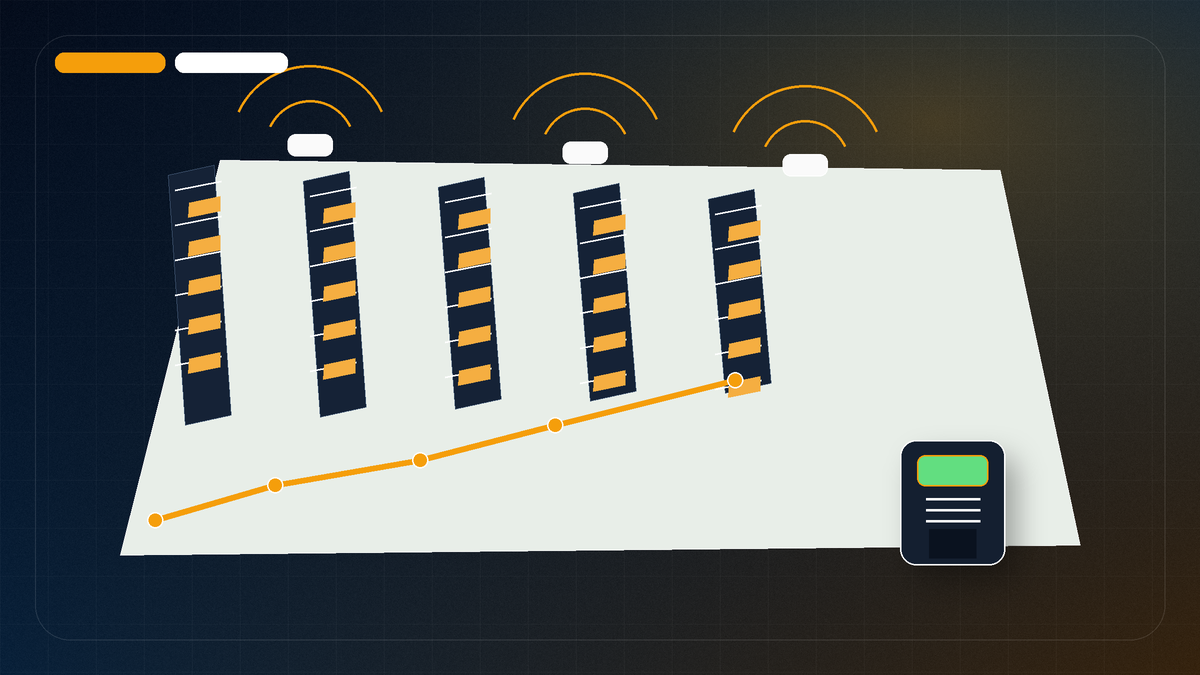
Barcode scanner WiFi drops are rarely solved by guessing. The symptom may look simple, a scanner disconnects, freezes, misses a scan, or loses the warehouse application, but the cause can involve RF coverage, SNR, noise/interference, channel reuse, roaming behavior, client device limits, AP placement, rack layout, dock movement, or application timeouts.
A warehouse scanner problem deserves a workflow that tests likely causes instead of simply adding APs.
Common causes
| Cause | What it looks like | What to check |
|---|---|---|
| Weak coverage | Drops in predictable dead zones | Signal map and walked scanner paths |
| Poor SNR/noise | Signal looks okay but performance is unreliable | SNR and noise/interference views |
| Channel contention | Problems in areas with many APs heard | Channel overlap/interference views |
| Roaming behavior | Drops while moving between aisles or docks | Client model, AP placement, roaming boundaries |
| Client limitations | Scanners behave worse than laptops | Band support, antenna, transmit power, firmware, app behavior |
| Rack/inventory changes | Problems change with product movement | Survey during realistic operations and note inventory state |
| Dock/yard transitions | Drops near doors, trucks, staging, outdoor edges | Transition coverage and operational path |
Why scanners are different from laptops
A laptop heatmap can be useful, but it does not prove scanner behavior. Barcode scanners may have different antennas, radio capabilities, band support, roaming logic, firmware, mounting position, and application timeout behavior. A forklift mounted terminal may see the network differently than a handheld device. Older devices may depend on 2.4 GHz or have limited support for newer WLAN features.
Collect scanner details before diagnosing:
- make/model and firmware
- supported bands and standards
- application used: WMS, telnet, browser, RDP, custom app
- whether drops are disconnects, freezes, slow scans, or session timeouts
- whether devices are handheld, forklift mounted, wearable, or fixed
- whether old and new scanner fleets are mixed
- exact aisles, docks, or zones where symptoms occur
Do not start by adding APs
Adding APs can help when the issue is coverage or capacity. It can also make problems worse if it creates unnecessary overlap, poor channel reuse, or confusing roaming boundaries. First inspect the RF layers: signal, SNR, noise/interference, channel behavior, AP placement, and device paths.
A good troubleshooting report should say why an AP should be added, moved, tuned, or left alone.
Walk the scanner path
A scanner survey should follow the work:
- receiving lanes
- put away and pick paths
- high velocity aisles
- staging and packing zones
- dock doors
- freezer/cold storage boundaries
- forklift routes if safe and in scope
- known complaint locations
- outdoor/yard transitions if devices roam there
Do not only walk open aisles or the building perimeter. The failure usually happens where the work happens.
RF checks that matter
Signal strength
Check whether the scanner path has adequate received signal for the project requirement. Avoid one universal target; requirements depend on noise, applications, client devices, and density.
SNR
If signal is acceptable but SNR is poor, the scanner may still struggle. SNR is the signal above the noise floor.
Channel behavior
Review whether APs are competing on the same or overlapping channels in the affected area. A channel problem may look like random unreliability rather than a dead zone.
AP placement
An AP mounted high above racks may not serve the scanner path the way the drawing suggests. Directional antennas, down aisle placement, or AP relocation may need consideration.
Operational checks that matter
RF is not the only variable. Also check:
- Are drops tied to certain shifts?
- Do problems appear when docks are active?
- Does inventory fill level change the symptom?
- Are trucks, doors, freezer curtains, or machinery involved?
- Does the app timeout quickly during roaming?
- Do only some scanner models fail?
- Are AP/channel/power settings different in that zone?
These questions turn “WiFi is bad” into a testable troubleshooting plan.
Validation after remediation
If changes are made, validate the affected scanner paths. Do not declare success because the controller looks clean or the heatmap is green. Walk the updated path, compare against the symptom, and record what changed.
Post change validation can be targeted. It does not always require a full building survey, but it should check the business critical zones that drove the project.
PacketScout next steps
For scanner heavy sites, start with warehouse WiFi survey and design. If you already have survey data, PacketScout can help through WiFi heatmap services. If your team wants to collect data, use the WiFi survey equipment rental vs service guide to choose rental, service, or hybrid support.
Scanner troubleshooting worksheet
Use this worksheet before the site visit:
| Question | Why it matters |
|---|---|
| Which scanner models fail? | Mixed fleets can hide device specific behavior. |
| Where exactly do drops occur? | Aisle/dock/staging detail determines the walk path. |
| What does “drop” mean? | Disconnect, app freeze, slow scan, reconnect, or transaction timeout are different symptoms. |
| What bands do scanners support? | 2.4/5/6 GHz assumptions must match client capability. |
| Are failures tied to movement? | Movement points toward roaming, overlap, or application session behavior. |
| Are failures tied to time of day? | Density, dock activity, inventory, or machinery may be involved. |
| What changed recently? | New racks, AP moves, firmware, inventory, or apps can trigger symptoms. |
| Can the area be safely walked? | Docks, forklifts, freezer areas, and lift rules affect survey coverage. |
Bring this worksheet into the report. It keeps the troubleshooting from becoming a generic WiFi complaint.
Scanner focused validation path
A scanner focused validation should follow these steps:
- Map the complaint zones and scanner paths.
- Confirm scanner models and application behavior.
- Walk the affected zones with RF measurement equipment.
- Review signal, SNR, noise/interference, and channel behavior.
- Compare results against AP placement and rack/dock context.
- If changes are made, re walk the affected scanner path.
- Confirm whether the business symptom improved, not only whether the heatmap changed.
This keeps the project focused on the floor. A nicer color map means little if scanners still drop at receiving.
What not to conclude too quickly
Do not immediately conclude that the scanner vendor, AP vendor, or warehouse staff are at fault. Do not conclude that more APs are required without checking channel reuse and client behavior. Do not conclude that a green laptop survey proves scanner success. Each of those shortcuts can send the project in the wrong direction.
A good PacketScout troubleshooting process narrows the cause with evidence and states what still needs validation.
Roaming and session persistence details
Scanner complaints often sound like RF problems, but the failure may be roaming or application session behavior. A handheld can have usable signal and still drop a Telnet, SSH, terminal emulation, or warehouse management session if it roams too late, roams too often, loses authentication context, or hits an application timeout.
Review these items before declaring the fix:
- scanner model, firmware, radio mode, and band preference
- SSID/security method and authentication delay
- whether 802.11k/v/r, OKC, or controller fast roaming features are enabled and supported
- client roaming threshold or scan period settings if exposed by the scanner platform
- whether the application reconnects cleanly after a brief roam
- whether drops happen at consistent physical transitions
- whether controller logs show deauth, disassociation, excessive retries, or low data rates
The strongest report combines the user complaint, client details, RF path, and logs. If the only evidence is “scanner dropped,” the recommendation is still underdeveloped.
FAQ
Why do barcode scanners drop WiFi when laptops work fine?
Scanners may have different radios, antennas, band support, roaming behavior, firmware, and application timeout behavior. A laptop test does not automatically prove scanner performance.
Should we add more APs for scanner drops?
Only when the data supports it. AP moves, channel/power tuning, antenna changes, or client/app fixes may be better depending on the cause.
What should a scanner WiFi survey include?
It should include scanner paths, complaint zones, floor/rack/dock context, signal, SNR, noise/interference, channel behavior, AP placement review, client details, and post change validation recommendations.
Rugged scanner realities: model, band, and session behavior
Scanner troubleshooting should name the device class, not only the RF symptom. Rugged handhelds and vehicle mounted terminals from Zebra, Honeywell, Datalogic, and similar vendors may behave very differently from a laptop used for a quick speed test. Many warehouse fleets still operate mainly on 2.4 GHz and 5 GHz, even when the building has newer WiFi 6E or WiFi 7 APs. A 6 GHz ready laptop survey can therefore make the network look healthier than the scanner fleet experiences.
Capture these details before changing AP placement:
| Scanner detail | Why it changes the diagnosis |
|---|---|
| Model, OS, firmware, and radio generation | Older radios may not support newer bands or roaming features. |
| Band preference or band lock | A scanner locked to 2.4 GHz can ignore a clean 5 GHz/6 GHz design. |
| Roaming support and thresholds | Late roaming can drop sessions even when coverage looks acceptable. |
| Authentication method | Slow re authentication can look like an RF drop. |
| Application session type | Terminal emulation workflows, Ivanti Velocity, StayLinked, Telnet/SSH style sessions, and browser apps recover differently after brief loss. |
| Mounting/use pattern | Handheld, forklift mounted, and wearable scanners see different antenna orientation and body blocking. |
The practical test is to walk the actual scanner path with the actual scanner class whenever possible. If the survey is done only with a laptop or tablet, label that limitation in the report.
Move the scanner table to the front of the investigation
The scanner table should not be buried at the end of the job. Put it near the start of the troubleshooting notes.
Before changing APs, write down the scanner model, firmware, band support, SSID, security method, roaming settings, app type, and the exact place where the worker loses the session. If the fleet mixes old and new scanners, split the findings. A Zebra handheld on 5 GHz and an older 2.4 GHz only unit are not the same client.
One useful field test is boring but effective: walk the same path with the scanner, then with the survey device, then compare the story. If the survey device looks clean and the scanner still drops, the problem may be client behavior, band choice, session recovery, or roaming. That is the note the operations team needs.
Want PacketScout to review the site?
Send the floor plan, square footage, AP model, critical devices, and the problem you are trying to solve.